In my previous post, I noted that Data Liberation provided a way for me to back up this blog. They propose that I can use the export function to create a backup of my blog. I do believe that it will capture all the texts and comments of the post, but I am not sure that it will capture any of my images. In addition, I believe I will still need to take a copy of my blog template.
I have decided to implement the following backup plan:
1) Full backups using HTTrack website copier. As an alternative, you can also use the export function within Blogger plus take copy of blog template.
2) Incremental backups using the BlogSend Address and Comment Notification Email features within Blogger.
BlogSend Address
Under Settings > Email & Mobile, there is a BlogSend Address that can be used to automatically send blogs posts to my email address whenever they are posted. I can use a filter to automagically file them into folders.
Comment Notification Email
Under Settings > Comments, there is a Comment Notification Email whenever someone leaves a comment on the blog.
Showing posts with label Google. Show all posts
Showing posts with label Google. Show all posts
Monday, December 21, 2009
Friday, December 18, 2009
Data Liberation of Google Data
When I first started writing, my intention was to capture tips on tools that I experimented with in Windows, Mac and Linux environments. Little did I know that just over a month after I began, about half my posts are Google-related. It seems that Google is constantly releasing new products or adding significant features to their existing products. I am extremely happy that Google is providing products that intrigued me enough to give them a try. In doing so, Google is capturing more and more of my personal data......and that worries me! Can I trust Google with their "Do no evil"? Maybe I CAN or maybe I CAN'T!
I started to think more about all my data scattered in various Google products. As a reminder, all I need to do is revisit my post on Google Dashboard to give me a quick summary. I am heavily invested in Gmail, Google Calendar, Google Docs and now Blogger. I know that I have some of my data backed up locally, but definitely not all.

I came across a website called Data Liberation that was founded by members of an engineering team at Google. Their singular goal is to make it easier for users to move their data in and out of Google products.
For most of their products, there is documentation on how to help free my data from Google should I wish to do so. My current intentions is not to migrate my data elsewhere (at least not yet) but rather to find a way to back up my data.
I started to think more about all my data scattered in various Google products. As a reminder, all I need to do is revisit my post on Google Dashboard to give me a quick summary. I am heavily invested in Gmail, Google Calendar, Google Docs and now Blogger. I know that I have some of my data backed up locally, but definitely not all.

For most of their products, there is documentation on how to help free my data from Google should I wish to do so. My current intentions is not to migrate my data elsewhere (at least not yet) but rather to find a way to back up my data.
Thursday, December 17, 2009
Google Chrome Extensions
Just as with Firefox, extensions are now available for Google Chrome on Windows and Linux.

In order to start using, you will need Google Chrome beta. The version I installed on Windows 7 was 4.0.249.30. Click on the extensions link. You will be presented with a list of extensions to choose from.

I choose Google Mail Checker to start with.

You can now click the Install button.

Click Install in the Confirmation Installation window. Once the install is completed, you will see a Gmail icon at the top right of the browser.

You can continue installing as many extensions as you want. As these extensions are not yet mature, they may not be stable and may even be memory hogs.


You can now click the Install button.

Click Install in the Confirmation Installation window. Once the install is completed, you will see a Gmail icon at the top right of the browser.

You can continue installing as many extensions as you want. As these extensions are not yet mature, they may not be stable and may even be memory hogs.
Wednesday, December 9, 2009
Google Dictionary
In the past, if I wanted to find out what a word meant I would either use the define: Google search operator or search for a dictionary and plop in the word. Now, I will be off to the Google Dictionary instead.
As an example, I chose the word parfait that is meaningful both in English and French.
Using the English dictionary,

Using the French dictionary,

Using the French to English dictionary,

As an example, I chose the word parfait that is meaningful both in English and French.
Using the English dictionary,

Using the French dictionary,

Using the French to English dictionary,

The most interesting results were from the French to English dictionary. There were sound bites to help pronounce synonyms. There were also related phrases in both languages. I wonder what else I might find!
Tuesday, December 8, 2009
Google Public DNS - To Use Or Not To Use
Google launched a DNS resolving service called Google Public DNS. Google stated that using their DNS resolving service instead of your ISP's will improve page loading time. I currently use a combination of OpenDNS's and my ISP's. First, having multiple name servers from different providers gives me redundancy. Second, having OpenDNS listed before my ISP's provides a safer environment while my kids surf the net. It never crossed my mind that perhaps speed should also be a consideration.
If I were to use Google Public DNS,
1) It could provide additional redunancy.
2) I would lose the benefits of OpenDNS if the Google Public DNS was listed ahead of OpenDNS.
3) I would garner the benefit of a faster web experience (according to Google). Their benchmarks show that their DNS to be faster.
Is there a way that I could easily confirm these benchmarks? Google used GRC's Domain Name Speed Benchmark Tool and as it turns out it is available for anyone to use. The tool was easy to use. The Nameservers were already listed. All that you need to do was press Run Benchmark and wait for the results. I ran a test last night to see if I got similar results to what Google posted.

If I were to use Google Public DNS,
1) It could provide additional redunancy.
2) I would lose the benefits of OpenDNS if the Google Public DNS was listed ahead of OpenDNS.
3) I would garner the benefit of a faster web experience (according to Google). Their benchmarks show that their DNS to be faster.
Is there a way that I could easily confirm these benchmarks? Google used GRC's Domain Name Speed Benchmark Tool and as it turns out it is available for anyone to use. The tool was easy to use. The Nameservers were already listed. All that you need to do was press Run Benchmark and wait for the results. I ran a test last night to see if I got similar results to what Google posted.

OpenDNS servers are 208.67.222.222 and 208.67.220.220.
Google Public DNS servers are 8.8.8.8 and 8.8.8.4.
Based on the above benchmark,
1) My ISP easily beat both OpenDNS and Google Public DNS. I guess this should not be a surprise as they have the closest DNS to me.
2) OpenDNS was faster than Google Public DNS.
Bottom line, Google Public DNS is not faster for me (based on this one test). What I did learn is that I should re-configure my network settings to use my ISP's DNS first. For my kids, I could statically define the DNS they use to be OpenDNS. When Google Public DNS becomes faster for me or they provide additional functionality, I would revisit.
Just to be sure, I will re-run the benchmark to see if there is any difference.
Thursday, December 3, 2009
Google's Chrome OS in VMware Fusion
In my last post, I covered How To Install Google's Chrome OS to USB. I saw that someone at gdgt has already installed Chrome OS into a VMware image. I wanted to give a whirl to see if there was any differences to the USB version. It will also be useful to have it as a virtual machine to play with.
How to install and run Chrome OS in VMware Fusion:
1) Download the Chrome OS VMware image from gdgt. You will need to be a registered member to download. It is free to register.
2) From the VMware Fusion toolbar, select File > New
3) Click Continue without disc


5) Navigate to the chrome os vmware file downloaded in step 1. Select Make a separate copy of the virtual disk and click Choose.

6) Click Continue.

7) Choose Linux as the Operating System and Other Linux 2.6.x kernel as the version, and then click Continue.

8) Click on Customize Settings.

9) Change the Save As name to Chrome OS and click Save.

10) Watch as disk is copied.

11) Change some settings before starting virtual machine. Click on Network.

12) Change Network setting to Connect directly to the physical network (Bridged) and click Show All.

13) Change memory to 512M and click Show All.

14) Start the virtual machine. Log in using your gmail id and password.

15) Screenshot of the application page.

16) Screenshot of the networking options at the top right.

17) Screenshot of the Chrome options.

18) Screenshot of the Chromium OS version.

How to install and run Chrome OS in VMware Fusion:
1) Download the Chrome OS VMware image from gdgt. You will need to be a registered member to download. It is free to register.
2) From the VMware Fusion toolbar, select File > New
3) Click Continue without disc

4) Select Use an existing virtual disk

5) Navigate to the chrome os vmware file downloaded in step 1. Select Make a separate copy of the virtual disk and click Choose.

6) Click Continue.

7) Choose Linux as the Operating System and Other Linux 2.6.x kernel as the version, and then click Continue.

8) Click on Customize Settings.

9) Change the Save As name to Chrome OS and click Save.

10) Watch as disk is copied.

11) Change some settings before starting virtual machine. Click on Network.

12) Change Network setting to Connect directly to the physical network (Bridged) and click Show All.

13) Change memory to 512M and click Show All.

14) Start the virtual machine. Log in using your gmail id and password.

15) Screenshot of the application page.

16) Screenshot of the networking options at the top right.

17) Screenshot of the Chrome options.

18) Screenshot of the Chromium OS version.

Wednesday, December 2, 2009
How to Install Google's Chrome OS to USB
Why stop at installing and playing with Google's Android! It came to my attention today that I can install Chrome OS to a USB drive and boot from it. It's actually Chromium OS not Chrome OS. Chromium OS is the open source version of Chrome.
Credit goes to Hexxeh who put together a Chrome OS Diet USB Version. The directions for this appeared very simple and I was able to install without any issue.
How to install and run Chrome OS:
1) You need to get the Chome OS Diet USB Version. There are links on Hexxeh's website to download the image using either a torrent or http mirrors.
2) You need a USB stick to install Chrome OS on. The USB stick must be at least 1GB. I used an Apacer Steno 1GB stick.
3) Follow the instructions on Hexxeh's website for writing the Chrome OS image to USB. There are instructions to do so using Windows, Mac and Linux. I followed the Windows instructions.
4) You need a netbook or laptop. See the current list of supported hardware. I did not have any of the hardware listed. Remember that Chrome OS is still in development and won't be released till next year. I decided to try it on a MSI Wind U100 Netbook. All I needed to do was plug in a USB stick and when powered on, it booted directly into Chromium OS logon screen. The bios on my netbook was already configured to first boot from usb before the hard drive. You may also see an option to display the boot menu during the boot process. This will allow you to temporarily change the boot option.
5) Enter facepunch for both the username and password to log in. You are now in Chrome OS.
Some initial observations:
1) Ethernet worked right away while wi-fi did not. As far as I know this is not working yet.
2) The trackpad also worked, as did a mouse.
3) If you have used the Chrome browser before, then that's basically what you get with Chrome OS (at least for now).
4) If you click the chrome symbol at the top left of the screen, it takes you to a list of different web-based applications including Gmail, Hotmail, Yahoo! Mail, Google Calendar, Google Reader, Google Docs, You Tube, Picasa Web, Hulu, Lala, Pandora, Contacts, Calculator, To-do list, Calendar Panel, Books, Chess, Facebook and Twitter.
Credit goes to Hexxeh who put together a Chrome OS Diet USB Version. The directions for this appeared very simple and I was able to install without any issue.
How to install and run Chrome OS:
1) You need to get the Chome OS Diet USB Version. There are links on Hexxeh's website to download the image using either a torrent or http mirrors.
2) You need a USB stick to install Chrome OS on. The USB stick must be at least 1GB. I used an Apacer Steno 1GB stick.
3) Follow the instructions on Hexxeh's website for writing the Chrome OS image to USB. There are instructions to do so using Windows, Mac and Linux. I followed the Windows instructions.
4) You need a netbook or laptop. See the current list of supported hardware. I did not have any of the hardware listed. Remember that Chrome OS is still in development and won't be released till next year. I decided to try it on a MSI Wind U100 Netbook. All I needed to do was plug in a USB stick and when powered on, it booted directly into Chromium OS logon screen. The bios on my netbook was already configured to first boot from usb before the hard drive. You may also see an option to display the boot menu during the boot process. This will allow you to temporarily change the boot option.
5) Enter facepunch for both the username and password to log in. You are now in Chrome OS.
Some initial observations:
1) Ethernet worked right away while wi-fi did not. As far as I know this is not working yet.
2) The trackpad also worked, as did a mouse.
3) If you have used the Chrome browser before, then that's basically what you get with Chrome OS (at least for now).
4) If you click the chrome symbol at the top left of the screen, it takes you to a list of different web-based applications including Gmail, Hotmail, Yahoo! Mail, Google Calendar, Google Reader, Google Docs, You Tube, Picasa Web, Hulu, Lala, Pandora, Contacts, Calculator, To-do list, Calendar Panel, Books, Chess, Facebook and Twitter.
Tuesday, December 1, 2009
How to Install Google's Android OS in VMware Fusion 3
I am very curious about all the stuff Google has their hands in.....including Android. From all that I have heard, Android has a lot of promise but I am not ready to pick up a phone with Android on it. The iPhone is still the sexy one to own!
There is one Android open source project called Android-x86 that I found that is active and making great strides. I installed this version to learn more about Android. Here's how to install Android OS into VMWare Fusion 3.
1) Download the Android-x88 iso file.
2) From the VMware Fusion toolbar, select File > New
3) Click Continue without disc


5) Choose Linux as the Operating System and Other Linux 2.6.x kernel as the version, and then click Continue.

6) Change the memory to 512M if your system has enough memory to allow this.
7) Change the hard disk to IDE. To do so, first delete the one created by default. Then add a new one and be sure to change the Bus Type to IDE and adjust the Disk size to 8 GB. Click Apply.

8) Start the Android virtual machine. Select the option to install to hard disk.

9) As we started with a clean disk, we need to create a partition to install.
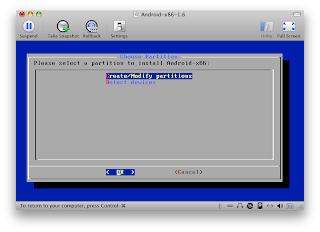
10) This is the most complicated screen. First select New > Primary > Full Size of disk > Bootable > write > yes > Quit.

11) Choose the sda1 Linux partition you just created and click OK.


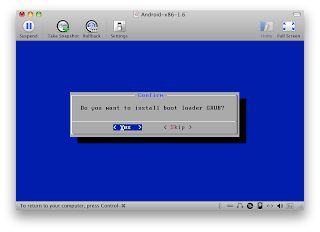


There is one Android open source project called Android-x86 that I found that is active and making great strides. I installed this version to learn more about Android. Here's how to install Android OS into VMWare Fusion 3.
1) Download the Android-x88 iso file.
2) From the VMware Fusion toolbar, select File > New
3) Click Continue without disc

4) Select Use operating system installation disc image file and then navigate to the android iso file, then click Continue

5) Choose Linux as the Operating System and Other Linux 2.6.x kernel as the version, and then click Continue.

6) Change the memory to 512M if your system has enough memory to allow this.
7) Change the hard disk to IDE. To do so, first delete the one created by default. Then add a new one and be sure to change the Bus Type to IDE and adjust the Disk size to 8 GB. Click Apply.

8) Start the Android virtual machine. Select the option to install to hard disk.

9) As we started with a clean disk, we need to create a partition to install.

10) This is the most complicated screen. First select New > Primary > Full Size of disk > Bootable > write > yes > Quit.

11) Choose the sda1 Linux partition you just created and click OK.

12) Choose the filesystem ext3 and click OK.

13) Confirm format of sda1 to ext3 by clicking Yes.

14) Click Yes to install GRUB boot loader.

15) You should now get the Congratulations screen. Choose Run Android-x86 and click OK.

16) Once Android has booted, you should now see the initial screen.

17) As a quick test, I used the browser to get to foodgawker.com and it worked!
18) Time to play with Android!
Wednesday, November 25, 2009
Google Apps for your company/group
How can your company/group use Google Apps. Let's first understand what Google Apps is?
Google Apps is a set of tools a group of people can use to communicate and collaborate online. It includes:
- Gmail for email
- GoogleTalk for instant messaging
- Google Calendar for scheduling
- Google Sites for websites and group wikis, and
- Google Docs for online documents, presentations and spreadsheets.
To begin using, you need to own a domain name e.g. geekwithme.com. If you don't own one, and the one you want is not already owned, you can purchase from Go Daddy or surprisingly from Google. So instead of a company using hotmail or gmail accounts, they can use Google Apps and instead be able to use email addresses like keith@geekwithme.com. Additional users like ceo@geekwithme.com or janitor@geekwithme.com can be created each with their own email address and start collaborating with each other using the tools above.
The really good news is that the Google Apps Standard Edition is FREE with the limitation of 50 users and 7GB email storage! So do you trust Google with your business data?
With all that Google is providing free, it is easy to find many scenarios where this could be beneficial. Let's consider a few scenarios.
The really good news is that the Google Apps Standard Edition is FREE with the limitation of 50 users and 7GB email storage! So do you trust Google with your business data?
With all that Google is providing free, it is easy to find many scenarios where this could be beneficial. Let's consider a few scenarios.
1) A small business that want to eliminate the burden of email and spam hosting from your IT staff. The transition is as simple as updating MX records for the domain.
2) A small company or a startup with a handful of individuals could present themselves in a more professional manner using a company email rather than some free email addresses
3) Social groups and clubs can use to share calendars and documents.
2) A small company or a startup with a handful of individuals could present themselves in a more professional manner using a company email rather than some free email addresses
3) Social groups and clubs can use to share calendars and documents.
4) A large company with over 50 users that wants to avoid the internal management of email servers and capital expenditures for servers. The cost for the Google Apps Premium Edition is $50 per user per year.
5) Individuals who have a web presence and prefer using their web site domain in their email address.
5) Individuals who have a web presence and prefer using their web site domain in their email address.
Monday, November 23, 2009
Riding the Google Wave - Take Two
As I am trying to learn how to use the wave, it continues to change in response to feedback from early invitees.
Whenever you click on a public wave, it used to automatically start staying in your inbox. Before you know it, they were clogging up everyone's inboxes. Now when you see a public wave that you are interested in and want updates, you can choose to follow by clicking the Follow button in the wave toolbar. If you no longer want to Follow, you can click the Unfollow button. There is also an option to Archive a public wave in your inbox. This only temporarily removes it from your inbox, and will return when there is an update.
I still have a few public waves in my inbox that I viewed earlier today. They show as unfollowed, and as I understand they will leave my inbox as they get updated. I will keep eye on this. I will also Archive some of these and would not expect them to return.
Whenever you click on a public wave, it used to automatically start staying in your inbox. Before you know it, they were clogging up everyone's inboxes. Now when you see a public wave that you are interested in and want updates, you can choose to follow by clicking the Follow button in the wave toolbar. If you no longer want to Follow, you can click the Unfollow button. There is also an option to Archive a public wave in your inbox. This only temporarily removes it from your inbox, and will return when there is an update.
I still have a few public waves in my inbox that I viewed earlier today. They show as unfollowed, and as I understand they will leave my inbox as they get updated. I will keep eye on this. I will also Archive some of these and would not expect them to return.
Friday, November 20, 2009
Google Wave Cheat Sheet
This Google Wave Cheat Sheet below is for my reference as I continue to ride the wave. It was copied from a public wave called Google Wave Cheat Sheet.
A great list of commands to use in Google Wave, found via Church Tech Matters.
Google Wave Cheat Sheet
A great list of commands to use in Google Wave, found via Church Tech Matters.
Search Cheat Sheet
This is a quick guide to the operators and restricts supported by wave search.
Keywords
about:[keyword] — finds waves which have [keyword] occurring anywhere. Same as [keyword].
title:[keyword] — finds waves which have [keyword] in the title.
caption:[keyword] — finds waves which have an attachment where [keyword] occurs in the caption.
————————————————
Status
is:read — finds all read waves.
is:unread — finds all unread waves.
Note: you cannot currently do a search like “-is:read” by itself and get reliable results due to an outstanding restriction on megastore queries
is:mute — finds all muted waves.
is:unmute — finds all waves not muted
is:active — currently the same as is:unread.
is:note — finds all waves which have you as the only participant and contributor
————————————————
Participants
from:[address] — finds waves from the participant identified by the address. Special case of from:me identifying waves from yourself.
by:[address] — same as from:[address].
to:[address] — find waves which are a dialogue between you and the participant identified by the address.
with:[address] — find waves that have the participant identified by the given address explicitly listed.
owner:[address] — find waves by person, that they created.
only:[address] — finds waves to which only the participant specified by the given address contributed.
————————————————
Date Search
Currently, there are a few restricts:
past:[date term] — finds all waves in the last period.
previous:[date term] — finds all waves in the period before the last period.
before:[date term] — finds all waves before a certain period.
after:[date term] — finds all waves after a certain period.
which can be combined with date terms:
day
week
month
year
So you can have past:week, past:year. There is also support for
past:N[date term] where N > 0. So you can have past:3days (today, yesterday, the day before yesterday).
Also you can have
past:Ndays
past:Nweeks
past:Nmonths
past:Nyears
Finally, you can abbreviate days, weeks, months and years to a single letter (d, w, m, y). Thus you can write
past:3d
past:2w
————————————————
Folders
in:[folder name] — find waves in the folder with the given name. For example, in:inbox.
in:[search name] — find waves in the saved search with the given name.
is:unfiled — find waves which have not been moved to a user folder.
is:filed — find waves which belong to some user folder.
————————————————
Attachments
has:attachment — finds waves with an attachment. This changed from “is:image”.
has:document — finds waves with an attachment which is a document. (coming soon)
has:image — finds waves with an attachments which is an image. (coming soon)
caption:[keyword] — finds waves with an attachment with caption containing [keyword].
filename:[keyword] — finds waves with an attachment with filename containing [keyword]. (coming soon)
mimetype:[keyword] — finds waves with an attachment with mimetype containing [keyword]. (coming soon)
————————————————
Tags
tag:[tag name] — finds waves with the tag [tag name].
————————————————
Gadgets
has:gadget — finds waves which contain a gadget.
gadget:[keyword] — finds waves which contain a gadget with name containing keywords. e.g. chess, fridge, map, risk, sokoban.
gadgeturl:[keyword] — finds waves which contain a gadget with urls containing keyword.
gadgettitle:[keyword] — finds waves which contain a gadget with a title containing keywords.
————————————————
Expressions
foo & bar — match waves with foo and bar.
You can use AND, or skip the operator altogether, as the logical and is the default.
foo | bar — match waves with foo or bar (or both).
foo OR bar — match waves with foo or bar (or both).
-foo — match waves that do not contain foo. (There is an outstanding bug that causes searches with only negative terms to fail. To get around it, use to:me -foo)
“foo … bar” — matches waves that contain the exact phrase “foo … bar” (There is an outstanding bug for live search not working with phrases)
foo & (bar | -baz) — matches waves that contain foo and either bar or do not contain baz.
————————————————
Phrases
“[multiple terms]” — match waves with one or more terms in sequence:
“hot dog” catches waves with the terms hot and dog in sequence. This is also required for other operators such as in:”new inbox” where say “new inbox” is a saved search.
————————————————
XML Search
tags:subtag — find all waves which have this combination.
tag:[tag] — find all waves which have this .
attribute:[value keyword] — finds all waves which have < …. attribute=value …> where keyword is a token in value.
————————————————
Wave ID
id:”” — find a wave with a specific wave id.
————————————————
Zero Inbox
If you want to zero inbox, you can hack this temporarily by saving a search “my inbox” with the query:
in:inbox is:unread this:week. You can then use the menu option “Mark as read” in the wave panel.
Alternative zero inbox: in:inbox is:unread past:7days -is:mail
————————————————
Saved Searches
A search can be saved using one of two methods:
Create a search in the search box and then press the Save search button at the bottom of the Digest panel.
Add a search using the searches Add button on the Navigation panel. Then add the search query and name of the search in the Saved Search popup panel.
Saved searches can be edited and managed using the pop-up menu which shows when hovering over the saved search in the searches section of the Navigation panel.
————————————————
Filters
Filters are saved searches which also have an action to apply to all waves which match the saved search. The actions supported are
skip inbox – removes the wave from inbox. Whilst this wave continues to match the search, it will continue to stay out of the inbox. Skip inbox will shortly be renamed archive.
mark as read – Whilst the wave continues to match the search, it will be marked as read.
————————————————
Folders
You can add a folder by using the Add button on the folders section of the Navigation panel. A folder is added by typing the folder name in the text box given and hitting enter.
Folders can be managed using the pop-up menu that shows when hovering over the folder on the Navigation panel.
Add folder – A subfolder can be added under the current folder.
Rename – rename the current folder.
Delete – delete the current folder.
————————————————
Language Filter
Much thanks to Geoffrey Spear for the help and insight:
The problem is that these tags aren’t exclusive; if a Wave has any English in it at all it will show up under “lang:en” even if it’s mostly in another language. This is particularly a problem since the search terms themselves are all English so a Wave in, say, Portuguese about using Wave will tell people they need to use “with:whatever” and the system will see “with”, an English word and suddenly the Wave is in both lang:en and lang:pt.
“group:public@a.gwave.com lang:en -lang:es -lang:fi -lang:hu -lang:pt -lang:nl -lang:ja -lang:he -lang:fr -lang:ru -lang:sv -lang:zh -lang:de -lang:no -lang:da”
… is fairly effective, although you basically need to keep adding more as you find Waves not in one of these languages. Not a really good solution 
title:[keyword] — finds waves which have [keyword] in the title.
caption:[keyword] — finds waves which have an attachment where [keyword] occurs in the caption.
————————————————
is:unread — finds all unread waves.
Note: you cannot currently do a search like “-is:read” by itself and get reliable results due to an outstanding restriction on megastore queries
is:unmute — finds all waves not muted
is:active — currently the same as is:unread.
is:note — finds all waves which have you as the only participant and contributor
————————————————
by:[address] — same as from:[address].
to:[address] — find waves which are a dialogue between you and the participant identified by the address.
with:[address] — find waves that have the participant identified by the given address explicitly listed.
owner:[address] — find waves by person, that they created.
only:[address] — finds waves to which only the participant specified by the given address contributed.
————————————————
previous:[date term] — finds all waves in the period before the last period.
before:[date term] — finds all waves before a certain period.
after:[date term] — finds all waves after a certain period.
which can be combined with date terms:
week
month
year
So you can have past:week, past:year. There is also support for
Also you can have
past:Nweeks
past:Nmonths
past:Nyears
Finally, you can abbreviate days, weeks, months and years to a single letter (d, w, m, y). Thus you can write
past:2w
————————————————
in:[search name] — find waves in the saved search with the given name.
is:unfiled — find waves which have not been moved to a user folder.
is:filed — find waves which belong to some user folder.
————————————————
has:document — finds waves with an attachment which is a document. (coming soon)
has:image — finds waves with an attachments which is an image. (coming soon)
caption:[keyword] — finds waves with an attachment with caption containing [keyword].
filename:[keyword] — finds waves with an attachment with filename containing [keyword]. (coming soon)
mimetype:[keyword] — finds waves with an attachment with mimetype containing [keyword]. (coming soon)
————————————————
————————————————
gadget:[keyword] — finds waves which contain a gadget with name containing keywords. e.g. chess, fridge, map, risk, sokoban.
gadgeturl:[keyword] — finds waves which contain a gadget with urls containing keyword.
gadgettitle:[keyword] — finds waves which contain a gadget with a title containing keywords.
————————————————
You can use AND, or skip the operator altogether, as the logical and is the default.
foo | bar — match waves with foo or bar (or both).
foo OR bar — match waves with foo or bar (or both).
-foo — match waves that do not contain foo. (There is an outstanding bug that causes searches with only negative terms to fail. To get around it, use to:me -foo)
“foo … bar” — matches waves that contain the exact phrase “foo … bar” (There is an outstanding bug for live search not working with phrases)
foo & (bar | -baz) — matches waves that contain foo and either bar or do not contain baz.
————————————————
“hot dog” catches waves with the terms hot and dog in sequence. This is also required for other operators such as in:”new inbox” where say “new inbox” is a saved search.
————————————————
tag:[tag] — find all waves which have this .
attribute:[value keyword] — finds all waves which have < …. attribute=value …> where keyword is a token in value.
————————————————
————————————————
Alternative zero inbox: in:inbox is:unread past:7days -is:mail
————————————————
Add a search using the searches Add button on the Navigation panel. Then add the search query and name of the search in the Saved Search popup panel.
Saved searches can be edited and managed using the pop-up menu which shows when hovering over the saved search in the searches section of the Navigation panel.
————————————————
mark as read – Whilst the wave continues to match the search, it will be marked as read.
————————————————
Rename – rename the current folder.
Delete – delete the current folder.
————————————————
“group:public@a.gwave.com lang:en -lang:es -lang:fi -lang:hu -lang:pt -lang:nl -lang:ja -lang:he -lang:fr -lang:ru -lang:sv -lang:zh -lang:de -lang:no -lang:da”
… is fairly effective, although you basically need to keep adding more as you find Waves not in one of these languages. Not a really good solution
Thursday, November 19, 2009
Riding the Google Wave - Initial Impression
I FINALLY received my Google wave invitation from Google exactly one week ago! When I first signed in, the interface was very confusing at sight. It sorta look like an email client with my folders and contacts to the left and my list of emails (I guess it is now call waves) in the middle. When you click on a wave, the window to the right shows the details of the wave. I had a handful of waves from Google to help me get started. I had 3 contacts listed. I assumed these were my Gmail contacts who also had a wave account.
A couple of days later (at least that's when I noticed), I received 20 invitations. I immediately gave one to my brother for us to experiment with. Initially, our wave was no different than email as neither one of us was around when we replied to each other. Next I also gave invites to my kids. The behavior changed as it was more like a chat client. The kids had a blast knowing that as soon as someone typed on one screen, it was showing up on the other. It is a bit mesmerizing watching someone type and then change their thought and then retype again.
It is easy to see that you can you use Google Wave to collaborate on a document with multiple contributors working on the same document at the same time.
I did find a good resource to learn more about Google Wave. Currently it is called The Complete Guide to Google Wave and it is available online of Gina Trapani and Adam Pash.
A couple of days later (at least that's when I noticed), I received 20 invitations. I immediately gave one to my brother for us to experiment with. Initially, our wave was no different than email as neither one of us was around when we replied to each other. Next I also gave invites to my kids. The behavior changed as it was more like a chat client. The kids had a blast knowing that as soon as someone typed on one screen, it was showing up on the other. It is a bit mesmerizing watching someone type and then change their thought and then retype again.
It is easy to see that you can you use Google Wave to collaborate on a document with multiple contributors working on the same document at the same time.
I did find a good resource to learn more about Google Wave. Currently it is called The Complete Guide to Google Wave and it is available online of Gina Trapani and Adam Pash.
Wednesday, November 18, 2009
Google Dashboard
Google Dashboard is a new service from Google that shows a summary of all the data Google has stored associated with your account. For me, the dashboard showed my name, email address and stats for Blogger, my calendars, my contacts, Google Docs, Gmail, iGoogle, Orkut, Picasa Web Albums, Reader, Google Talk, Tasks, Web History and YouTube. That's not all! Google will be adding more of there products in the future such as AdSense, Bookmarks, Groups, maps, Sites and Wave.
There are my paths to the Google Dashboard. One quick way is via http://www.google.com/dashboard.
There are my paths to the Google Dashboard. One quick way is via http://www.google.com/dashboard.
Tuesday, November 17, 2009
Stock quotes using Google docs spreadsheet
Do you use Yahoo Finance or some other site to track stocks you either own or want to buy? Did you know that you can do so using Google Docs using GoogleLookup and GoogleFinance functions? Once I heard this, I decided to give it a try.
Let's assume you put the name of the company such as Google you are interested in cell A2, with the stock ticker symbol in B2
=GoogleLookup(A2,"ticker") will give the stock ticker symbol of GOOG
=GoogleFinance(B2,"price") will give the current stock price
=GoogleFinance(B2,"low") will give the lowest stock price of the day
=GoogleFinance(B2,"high") will give the highest stock price of the day
In addition to the parameter of price, low and high, you can also use priceopen, volume, marketcap, tradetime, datadelay, volumeavg, pe, eps, high52, low52, change, changepct, closeyest, shares and currency. Most of these are self-explanatory.
Using these functions in a spreadsheet, I can now analyze companies in a given sector much easier now. There is so much more here that can be explored and I will continue to do so.
The only problem I encountered was finding the stock ticker symbol for a few companies using the GoogleLookup function.
Let's assume you put the name of the company such as Google you are interested in cell A2, with the stock ticker symbol in B2
=GoogleLookup(A2,"ticker") will give the stock ticker symbol of GOOG
=GoogleFinance(B2,"price") will give the current stock price
=GoogleFinance(B2,"low") will give the lowest stock price of the day
=GoogleFinance(B2,"high") will give the highest stock price of the day
In addition to the parameter of price, low and high, you can also use priceopen, volume, marketcap, tradetime, datadelay, volumeavg, pe, eps, high52, low52, change, changepct, closeyest, shares and currency. Most of these are self-explanatory.
Using these functions in a spreadsheet, I can now analyze companies in a given sector much easier now. There is so much more here that can be explored and I will continue to do so.
The only problem I encountered was finding the stock ticker symbol for a few companies using the GoogleLookup function.
Monday, November 16, 2009
Language Translation using Google spreadsheets
Google provides a function GoogleTranslate that allows text translation from one language to another. The syntax is =GoogleTranslate("text", "source language","target language").
An example is =GoogleTranslate(A1,"en","fr"). This will translate the text in A1 from English to French.
Wednesday, November 11, 2009
Language translation for Web pages
To help my daughter research her most recent school project, we needed the help of a French-to-English and an English-to-French translator for web pages. For the most part, we used the Unofficial Google Translate Firefox Extension 1.4 and it worked to our satisfaction. Yes, my daughter is a firefox user.....she calls herself a geek as well!
Since then I found a couple of other translators that both work on clipped text or web url. They are
Google Translate and Yahoo Babel Fish. I will them them a whirl next time.
Since then I found a couple of other translators that both work on clipped text or web url. They are
Google Translate and Yahoo Babel Fish. I will them them a whirl next time.
Language translation for Email
Since last month, teachers for my both daughters send emails along with attachments almost every day. The problem was they are all in French. With my French limited what I learned in high school so many years ago, I needed a quick way to translate them to English.
To my rescue came Gmail Labs. There is a feature called Message translation which translates emails you receive into another language. When I open the emails from their teachers now, I am presented the option to translate to English or other language of my choice. As you might expect, when I open attachments, they are still in French. I usually copy the contents and paste it into an email and then send it from my hotmail to Gmail account.
To my rescue came Gmail Labs. There is a feature called Message translation which translates emails you receive into another language. When I open the emails from their teachers now, I am presented the option to translate to English or other language of my choice. As you might expect, when I open attachments, they are still in French. I usually copy the contents and paste it into an email and then send it from my hotmail to Gmail account.
Subscribe to:
Posts (Atom)


 Posts
Posts

